Skip to content
EveryLoading
  • About EveryLoading
  • User manual
  • FAQ
  • Free tools
Integrations
  • Road transport
  • Sea freight
  • Air cargo
  • Manufacturing
  • Palletizing
  • Retail and distribution
BlogContact
Log in
Create free account

About

  • About EveryLoading
  • User manual
  • FAQ

Use cases

  • Road transport
  • Sea freight
  • Air cargo
  • Manufacturing
  • Palletizing
  • Retail and distribution

Free tools

  • Loading meter calculator
  • CBM calculator
  • Pallet fit calculator
  • Container size calculator
  • All free tools
IntegrationsBlogContact
Create free account

Getting started

  • Create your free account and open the planner
  • The planner at a glance

Set up the load

  • Choose a vehicle or container
  • Add cargo
  • Paste or import a packing list
  • Stacking, rotation and shape

Plan the load

  • Optimize the load
  • Move, stack and turn items in 3D
  • Views, camera and display
  • Loading sequence
  • Multi-stop deliveries
  • When it doesn't fit: several trucks

Weight & safety

  • Weight, axle loads and centre of gravity

Save & share

  • Save plans, undo and redo
  • PDF load plans and share links

Account

  • Plans, subscription and billing
  • Keyboard and mouse shortcuts
  • Switching from another load planner
User manual / Set up the load

Paste or import a packing list

Copy rows from Excel or Google Sheets, or import a CSV / XLSX file.

Video tutorial · 0:27 · the steps are also written out below

Paste from Excel or Google Sheets

  1. 1In your spreadsheet, select the rows with columns in this order: Name, Length, Width, Height, Weight, Qty. A header row is fine.
  2. 2Copy them (Ctrl/⌘ C).
  3. 3In the planner, click the empty row in the cargo table and paste (Ctrl/⌘ V).

Headers and units written in the header, such as "Length (mm)", are detected. If the sizes look like millimetres but the units say centimetres, you get a warning: switch the unit and paste again.

Import a CSV or Excel file

  1. 1In the Cargo tab, click Import file.
  2. 2Click Choose file and pick a .csv or .xlsx file with one item per row. No file yet? Download template gives you one with the right columns.
  3. 3Check the preview. Set Sizes in and Weight in if the file uses other units.
  4. 4Click Add … items. The rows are added to your cargo list.
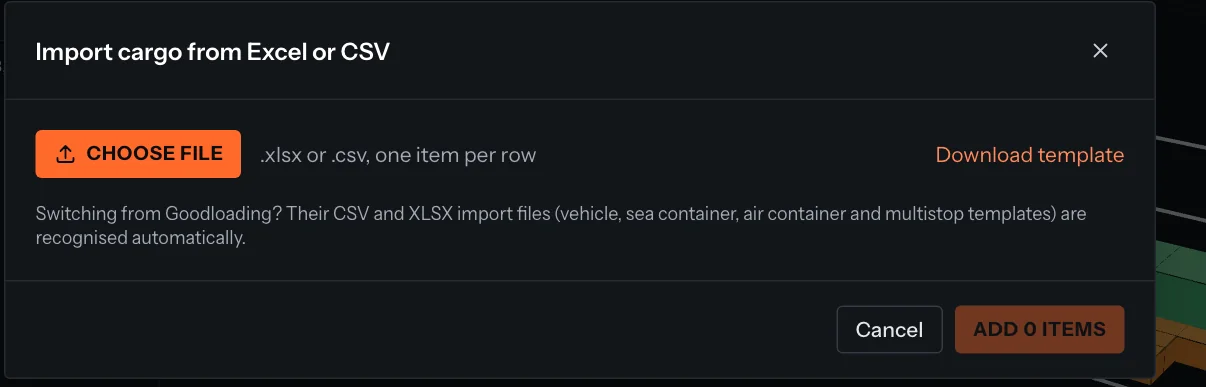
Import cargo from Excel or CSV dialog
The import preview.

Tip

Coming from another load planner? Its import templates are often recognised automatically. See Switching from another load planner.

← PreviousAdd cargoNext →Stacking, rotation and shape

Something unclear or out of date? Tell us and we'll fix the page.

On this page

  • Paste from Excel or Google Sheets
  • Import a CSV or Excel file
EveryLoading

Online load planning for trucks, sea containers and air cargo. Works in your browser, nothing to install.

Company

Wolfiz LimitedOffice 5118, 321–323 High RoadChadwell Heath, Essex, RM6 6AXUnited Kingdomsales@everyloading.com+44 7308 515752

Product

  • Try Planner
  • Free tools
  • Loading meter calculator
  • User manual
  • FAQ
  • Integrations
  • Developer API
  • Comparison

Use cases

  • Road transport
  • Sea freight
  • Air cargo
  • Manufacturing
  • Palletizing
  • Retail and distribution

Legal

  • Privacy Policy
  • Terms of Service
  • Sitemap
© 2026 Copyrights reserved by Wolfiz LTD.