Move, stack and turn items in 3D
Select, drag, nudge, turn and remove items by hand.
Select
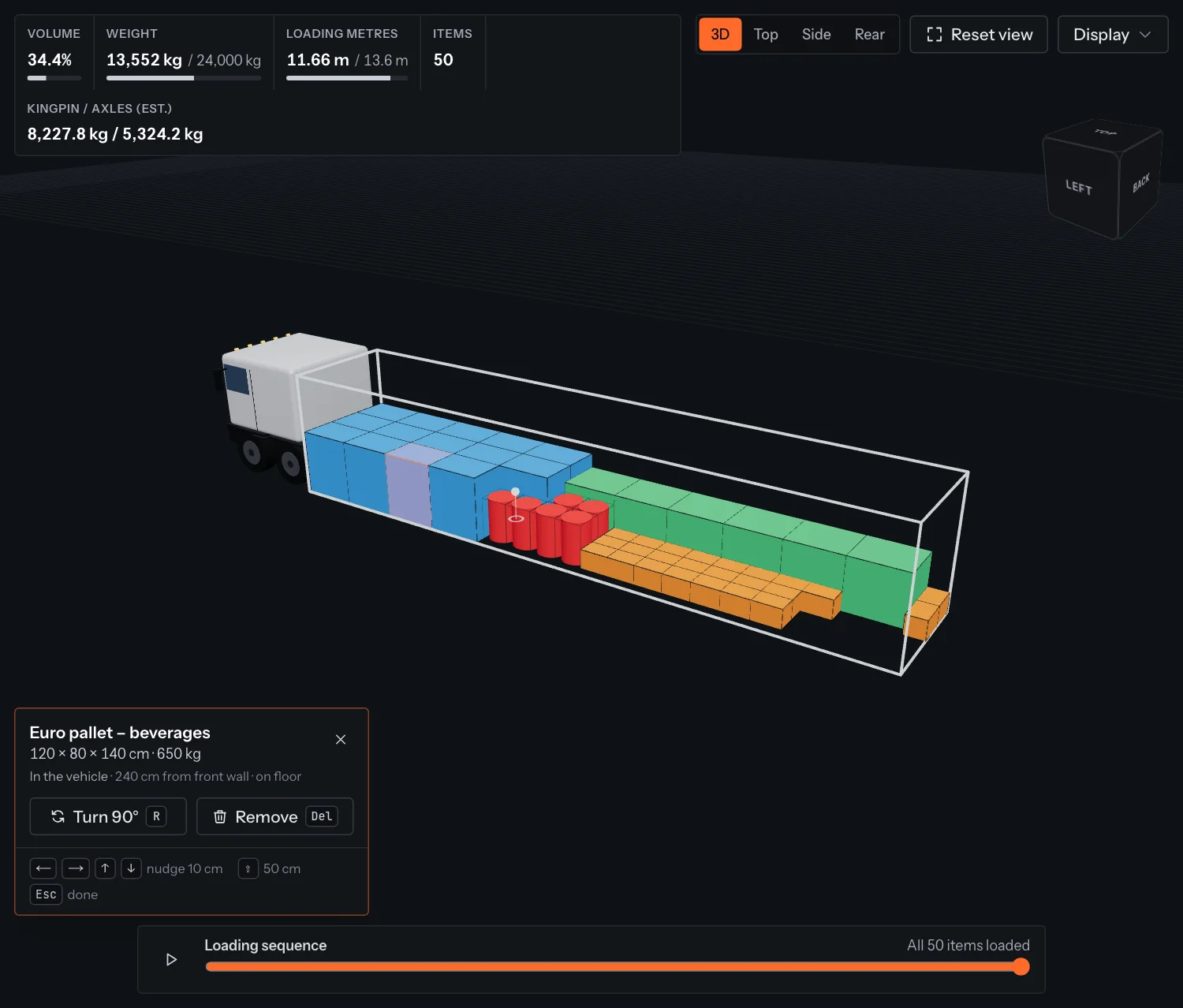
Click an item. It is outlined in orange and the selection panel opens in the bottom left with its name, size, weight and where it is (for example "240 cm from front wall · on floor").
Drag
Press on the item and drag. In the 3D and Top views it slides along the floor; in Side view along the length, in Rear view across the width. It always rests on the floor or on top of whatever is under it, so dragging onto another item stacks it.
- Edges snap to the walls and to neighbouring items when they get close.
- If the spot is taken, the item turns red and a green outline shows where it will land when you let go.
- Press Esc while dragging to cancel and put it back.
- The item's stacking settings apply when you drop it: it never lands on an item that may not carry it (May stand on, Max kg on top, Max items on top, Nothing may be placed on top), keeps Can be stacked on other items and needs at least half its base supported (Min. support when stacked if higher).
- Wheel arches, the cooling unit and the Variofloor block like cargo; an item under the Variofloor stays under it.
- Drag an item out of the vehicle to park it outside; drag it back in to load it. A load over the payload is refused with a message.
Nudge, turn and remove
| Action | How |
|---|---|
| Nudge 10 cm | Arrow keys. They follow the screen: left/right across the view, up/down away from or towards you. |
| Nudge 50 cm | Shift + arrow keys |
| Turn 90° on the floor | R, the Turn 90° button, or right-click the item |
| Remove | Delete or Backspace, or the Remove button |
| Deselect | Esc, the close button on the panel, or click empty space |
Nudged items stop flush against walls and other items. If there is no room to turn an item where it is, you get a message: drag it to open space first.
Tip
Every change can be undone with Ctrl/⌘ Z.
Something unclear or out of date? Tell us and we'll fix the page.